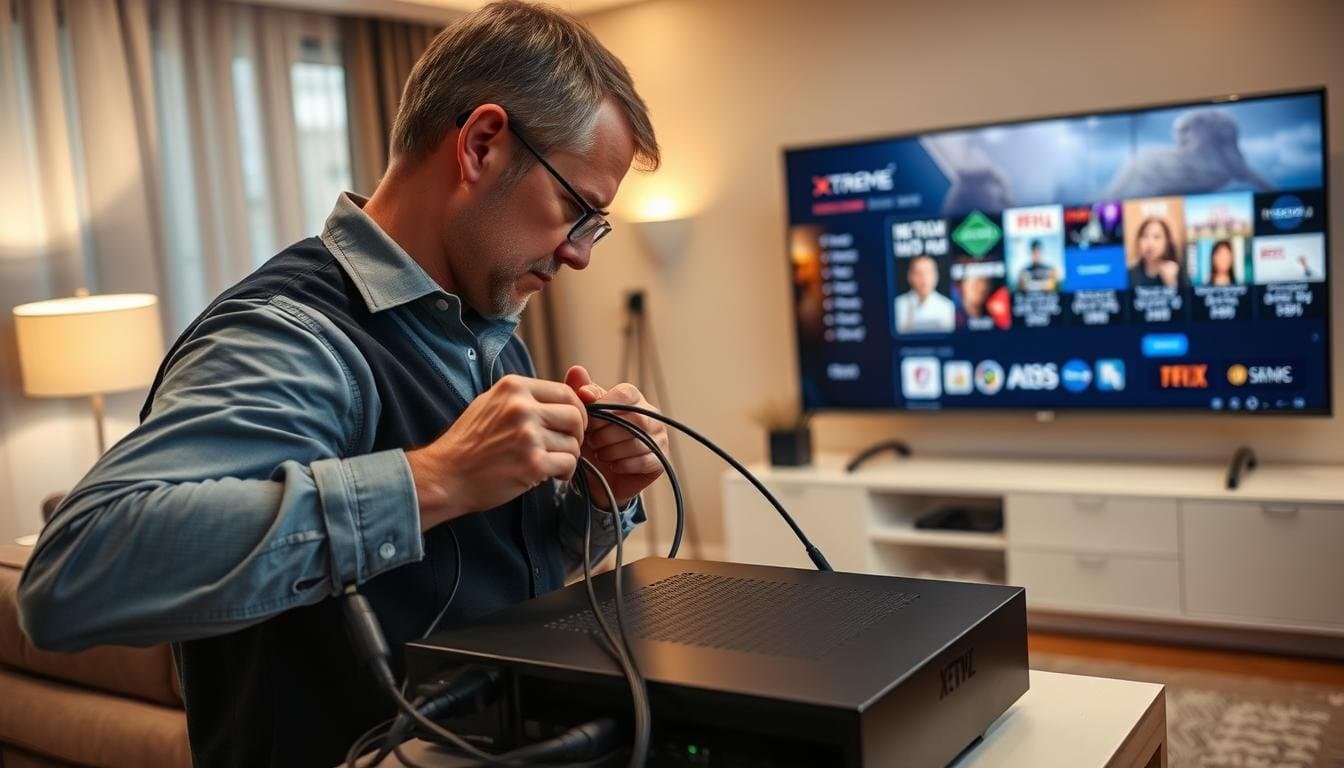
Installing Xtreme HD IPTV takes under 15 minutes on any device. This guide covers step-by-step setup for Amazon Firestick, Android, Smart TV (Samsung/LG), iPhone/iPad, and Windows/macOS — plus troubleshooting solutions for the most common issues.
What You'll Need Before Installing
- An active Xtreme HD IPTV subscription (or trial)
- Your server URL, username, and password (sent via email/WhatsApp after purchase)
- A stable internet connection — minimum 10 Mbps for HD, 25+ Mbps for 4K
- A compatible IPTV player: IPTV Smarters Pro or TiviMate (both free to download)
For a complete list of supported devices and advanced configuration options, visit our full installation page.
Install on Amazon Firestick
- Go to Settings → My Fire TV → Developer Options → enable Apps from Unknown Sources
- Install the Downloader app from the Amazon App Store
- Open Downloader, enter the IPTV Smarters Pro APK download URL and install it
- Open IPTV Smarters Pro → Select Login with Xtream Codes API
- Enter your server URL, username, and password
- Tap Load Data — your full channel list appears within seconds
Install on Android Devices
- Open the Google Play Store and search for IPTV Smarters Pro
- Install and open the app → Tap Add User
- Select Login with Xtream Codes API
- Fill in your name, server URL, username, and password
- Tap Load — all channels and VOD content load automatically
Smart TV Setup (Samsung and LG)
- Open the app store (Samsung Smart Hub or LG Content Store)
- Search for Smart IPTV or IPTV Smarters and install it
- Launch the app — it will display your device MAC address
- Send your MAC address to our support team via WhatsApp
- We activate your device within minutes; restart the app to load all channels
iPhone and iPad Setup
- Download GSE Smart IPTV from the App Store
- Open the app → Tap the menu icon → Remote Playlists
- Tap + → Add M3U URL → Enter a label and paste your M3U link
- Tap the playlist to load — channels appear immediately
💡 IPTV Smarters Pro is also available on the App Store and supports Xtream Codes API login for the most seamless iOS setup experience.
Windows and macOS Setup
On a computer, use TiviMate on Windows or VLC Media Player on Windows/macOS. In VLC, go to Media → Open Network Stream → paste your M3U playlist URL and click Play to load all channels.
Which IPTV Player App Should You Use?
Xtreme HD IPTV works with every major player. The right choice depends on your device and how much you want to customise the experience:
- IPTV Smarters Pro — the easiest all-rounder. Logs in with Xtream Codes, works on Firestick, Android, iOS and Smart TVs. Best for most users.
- TiviMate — the premium choice for Firestick and Android TV. Best-in-class TV guide, recording and a polished interface (some features need TiviMate Premium).
- Smart IPTV (SIPTV) — the go-to for Samsung and LG Smart TVs that use MAC-address activation.
- GSE Smart IPTV — a reliable free option for iPhone and iPad that supports both M3U and Xtream Codes.
💡 Login tip: use Xtream Codes API (server URL + username + password) rather than the M3U link where possible — it loads the full TV guide and VOD categories automatically.
How to Load the TV Guide (EPG) and Catch-Up
Your subscription includes a 7-day Electronic Program Guide and catch-up TV. In most players it loads automatically when you log in with Xtream Codes. If the guide is empty:
- Open your player's settings and find the EPG / TV-Guide section
- Make sure "Auto-load EPG on startup" is enabled
- If asked for an EPG URL, use the XMLTV link we send with your login
- Restart the app — the guide populates within a minute or two
- To watch a past programme, open a channel and scroll back in the guide to use catch-up
Troubleshooting Common Issues
- Buffering: Switch from Wi-Fi to Ethernet, or reduce quality from 4K to 1080p in app settings
- Login errors: Check for typos — credentials are case-sensitive
- Channels not loading: Verify your subscription is active; contact support if the issue persists
- ISP throttling: Enable a VPN to bypass streaming restrictions from your internet provider
- App crashes: Clear the app cache and restart; reinstall if the issue continues
For more solutions, visit our FAQ page or contact our 24/7 support team via WhatsApp.
Frequently Asked Setup Questions
How long does activation take after I pay?
Most accounts are activated within minutes. You receive your server URL, username and password by email or WhatsApp, then log in and start watching — total setup time is usually under 15 minutes.
Can I watch on more than one device?
Yes. Choose a plan that matches how many screens you want to stream on at the same time — Xtreme HD IPTV offers 1, 2, 3 and 4-device plans. See the pricing page for current options.
Do I need a VPN to use IPTV?
A VPN is not required. Some users add one for extra privacy or if their internet provider throttles streaming traffic, but the service works with or without it.
What internet speed do I need?
Plan for at least 10 Mbps for HD and 25+ Mbps for stable 4K. A wired Ethernet connection gives the smoothest results during live sports.
Ready to install? Subscribe first
Get Your Subscription →